Paid printing
View "My Computer" (Pic. 2: Default view "My computer")and write into adress bar "\\samba". Please login by your user name and password (Pic. 3: Login screen).
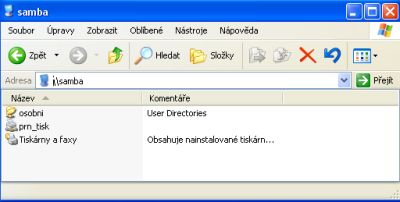
In the case of a successful login you'll see the network printer connectivity options, as is shown on Pic. 4: Samba options
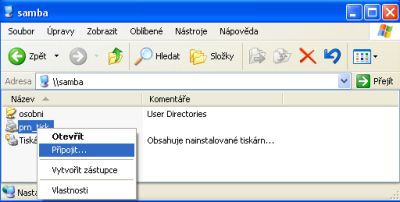
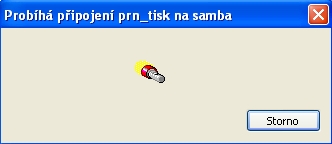
Right-click on "prn_tisk" menu will appear similar to the Pic. 5: Connecting network printer Choose "Connect" like on Pic. 6: Installing MFP driver
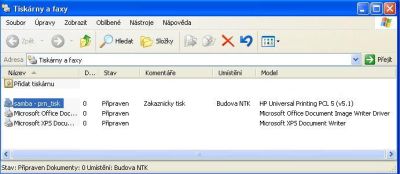
After successful login (Pic. 7: Connecting network printer) is printer shown in device list (Obr. 8: Device list of printers)
When you're printing it's necessary select the printer "prn_tisk" (Pic. 9: Choice device for printing)
The document is prepared in any MFP after applying the customer card and enter the PIN code.