Using the NTK Printing/Scanning Machines
Contents
- Controls
- Instructions for copying
- Instructions for printing
- Managing jobs in the print queue
- Instructions for scanning
Controls

Pic 1: If the machine is asleep, press "Start"
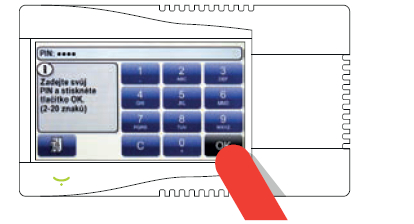
Pic 2: Swipe your customer card next to the control panel display, the enter your PIN code and press OK (Get a PIN on the website or ask at the information desk)
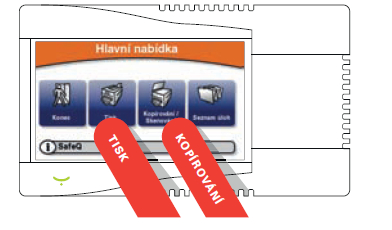
Pic 3: Select PRINT (Tisk) or COPY (Kopírování)
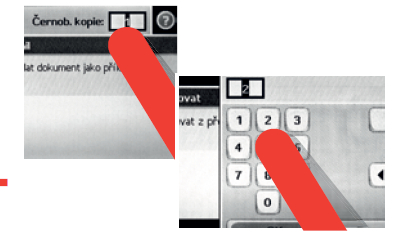
Pic 4: For copying, select number of copies and press "Start." Be sure to understand the Library Rules and price lists before printing/copying to avoid misunderstandings. For help, please contact the Information Desk and tell them the device number (it's on the label under the control display)
Instructions for copying
Pic. 1: Load a document (marked in red, image above)
Pic. 2: Wait for the machine to warm up
Pic. 3: Swipe your card
Pic. 4: Enter your PIN
Pic. 5: Select "Copying/Scanning"
Pic. 6: Select "Copy" and make any adjustments to settings
Pic. 7: Press "Start"
Pic. 8: Remember your original (blue above) and your copy (red)
Pic. 9: The machine displays your number of copies. Press "End" button to cancel.
Pic. 10: Information about the price of your copies will be displayed
Instructions for printing
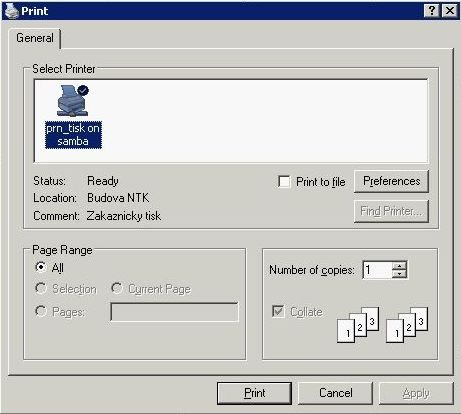
Pic. 1: To print a document, select the printer "prn_tisk" and send the document to printing queue
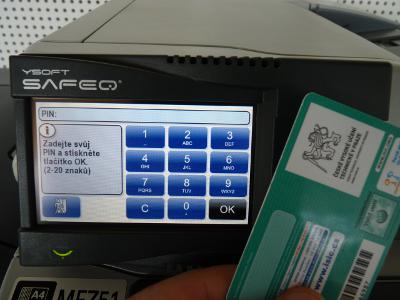
Pic. 2: You can switch to English using the left bottom button (picture of a globe). To authorize printing, swipe your customer card
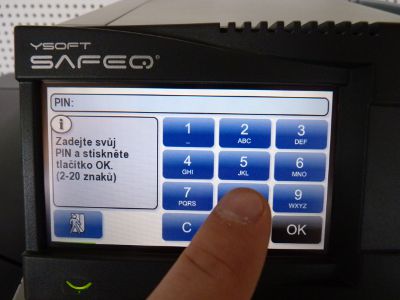
Pic. 3: Enter your PIN
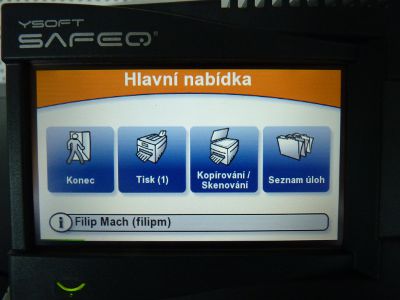
Pic. 4: After successful authentication, you'll see the print system menu
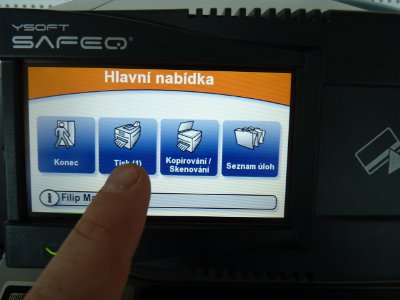
Pic. 5: Press "Print" to print all the jobs that are in your print queue
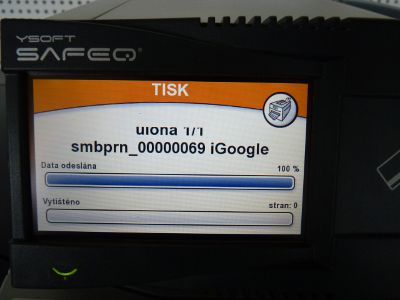
Pic. 6: The status of your print jobs will be displayed
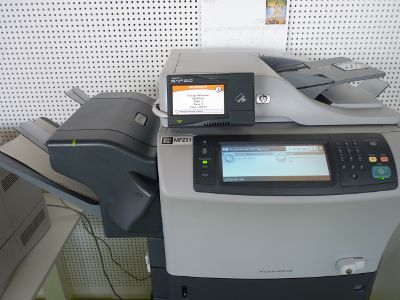
Pic. 7: Remember to take your printed documents from the bin
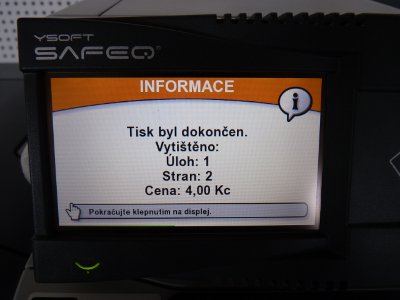
Pic. 8: Price of printing will be displayed
Managing jobs in the print queue
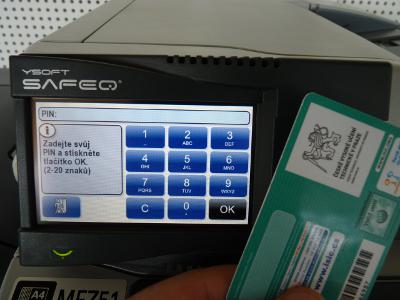
Pic. 1: Switch to English using the left bottom button (picture of a globe) and swipe your customer card
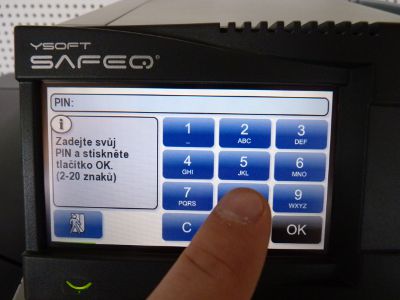
Pic. 2: Enter your PIN
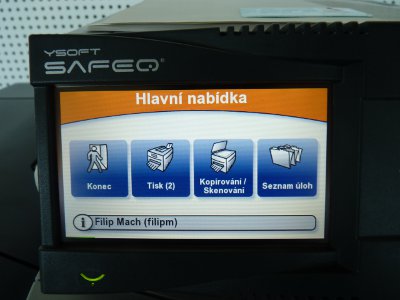
Pic. 3: After successful authentication, you'll see the print menu
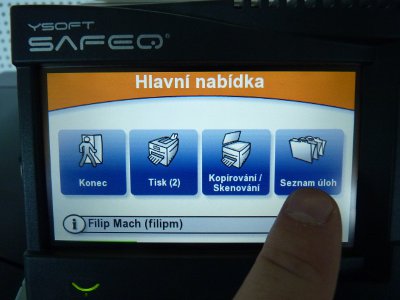
Pic. 4: Choose "Job list"
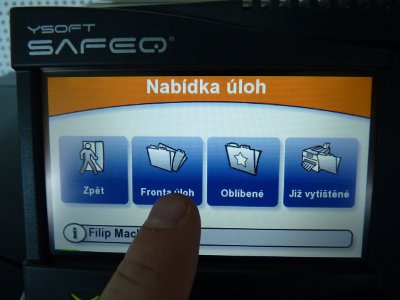
Pic. 5: Then select "Job Queue"
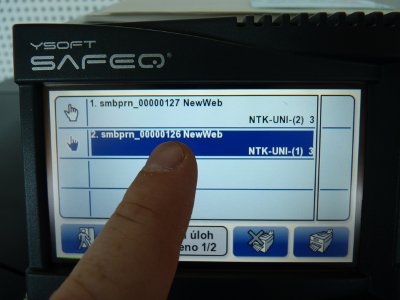
Pic. 6: Press the job you wish to print
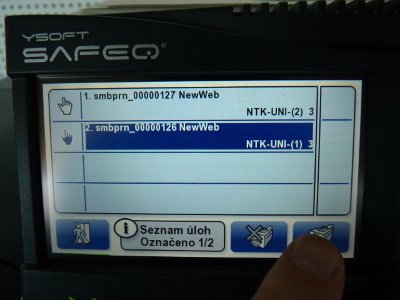
Pic. 7: Press the printer icon (lower right corner) to print
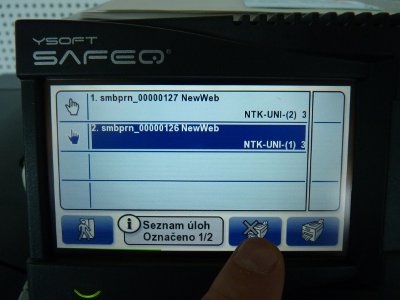
Pic. 8: To cancel a job, press the printer icon with the cross
Instructions for scanning
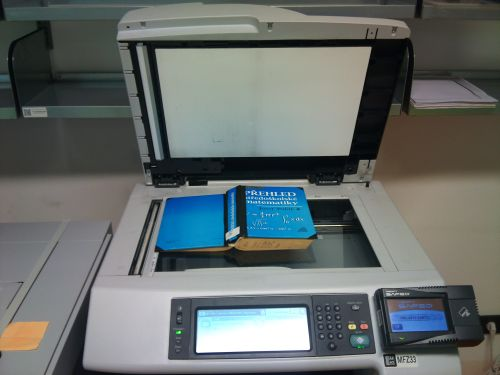
Pic. 1: Open the top cover and insert the document at the upper left corner.

Pic. 2: Switch to English using the left bottom button (picture of a globe) and swipe your customer card

Pic. 3: Enter your PIN

Pic. 4: Press Copying/Scanning button
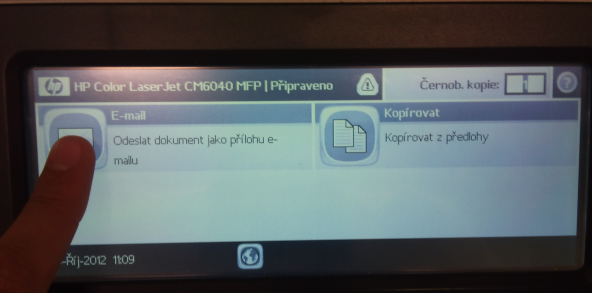
Pic. 5: Select the E-mail button
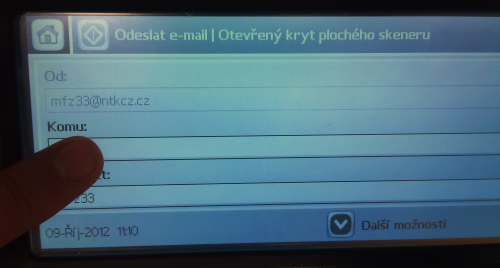
Pic. 6: Click the To: field
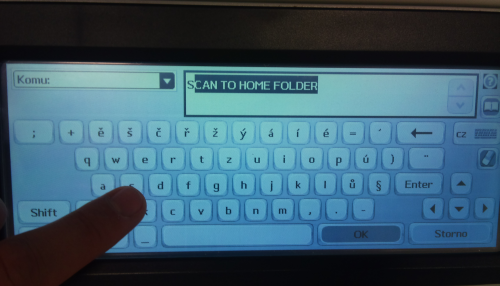
Pic. 7: On the keyboard, enter your email address or press the S button and the display will automatically show SCAN TO HOME FOLDER (check Finding your scanned documents)
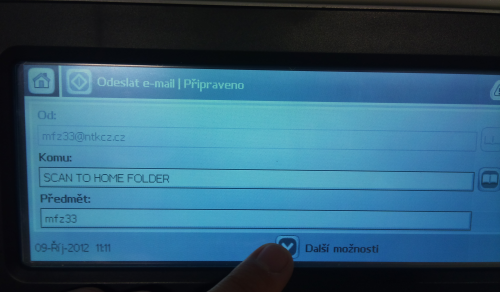
Pic. 8. For more options, press "More Options"
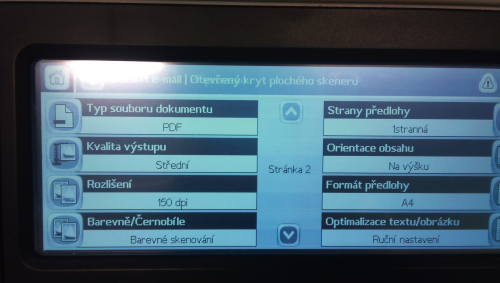
Pic. 9: Settings screen
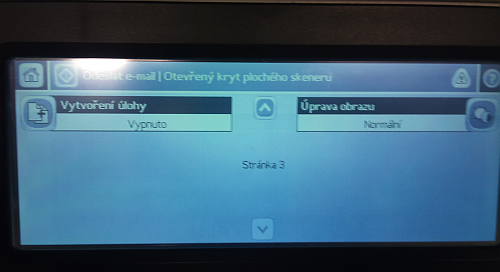
Pic. 10: For example, if you want to create a single PDF document with multiple pages, on Setting, page 3, select "Job Build: On"

Pic. 11: To begin scanning, press Start

Pic. 12: Be sure to log out by pressing Exit
Please note: use of ICT services is subject to the library regulations, notably "Rules for the use of computer technology and the Internet at NTK"
