Instructions for installing the print queue prn_tisk on Windows 8 Preview Release
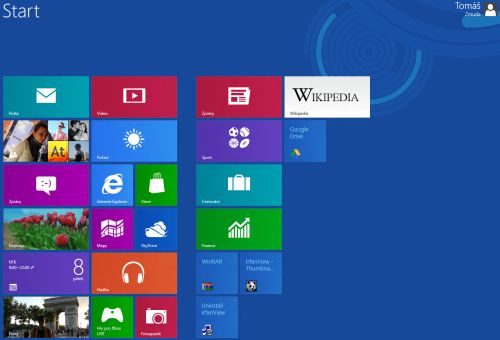
Pic. 1: In the main interface Metro press the key combination Win + E
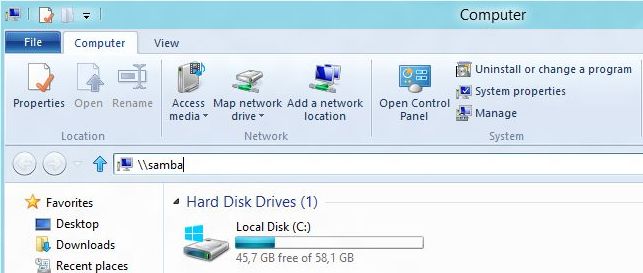
Pic. 2: In the address bar type the server name \\samba end press Enter
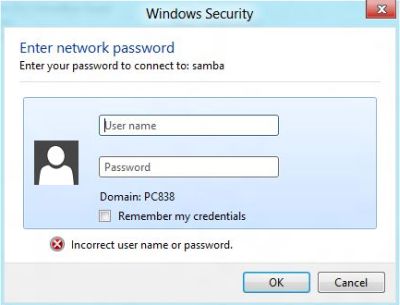
Pic. 3: Logon with your NTK username and password

Pic. 4: In Control Panel-> Devices and Printers choose: "Add a printer"
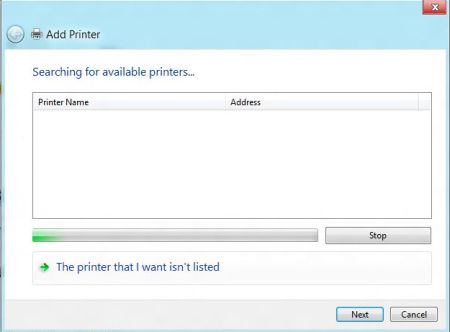
Pic. 5: Click on: "The printer that I want isn't listed"
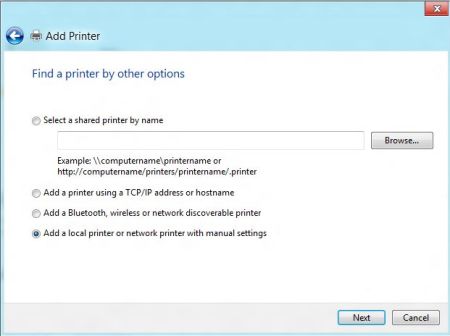
Pic. 6: Choose "Add a local printer or network with manual settings"
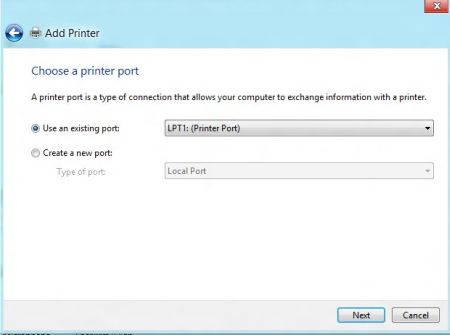
Pic. 7: Choose LPT1 port and click Next
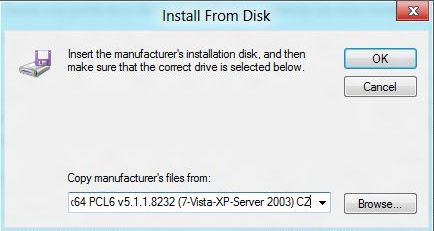
Pic. 8: Click on Have Disk... and find your way with a pre-downloaded PCL driver
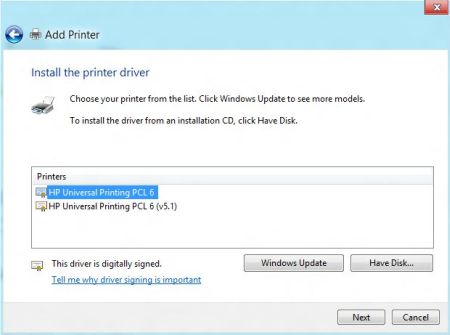
Pic. 9: Choose HP Universal Printing PCL 6 and click Next
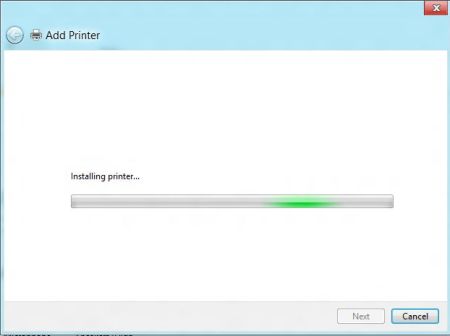
Pic. 10: Installing printer
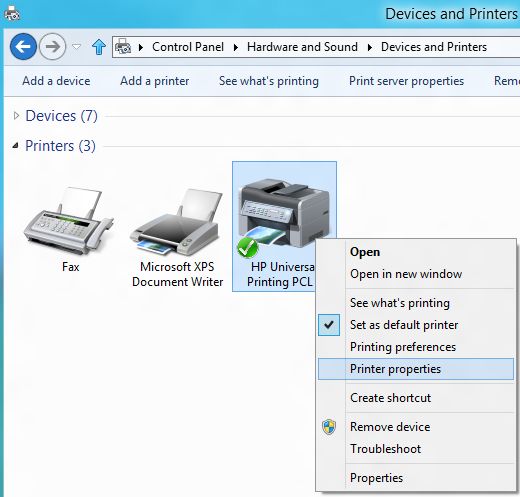
Pic. 11: Return to the Control Panel->installed printers and right-click to open context menu and select Printer properties
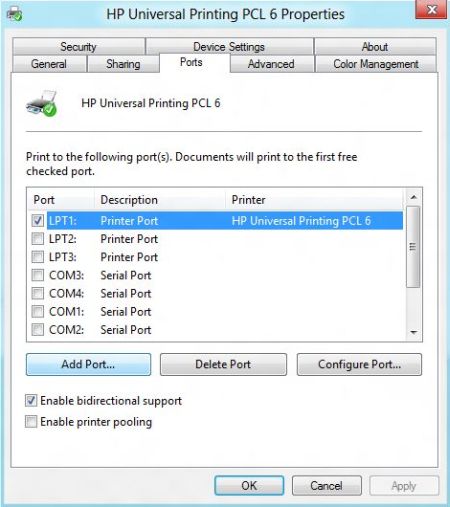
Pic. 12: From the menu, select Ports and Add Port ...
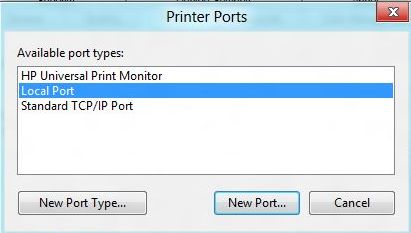
Pic. 13: Choose "Local Port" and click on "New port..."
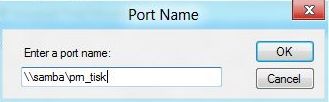
Pic. 14: As a port name write \\samba\prn_tisk
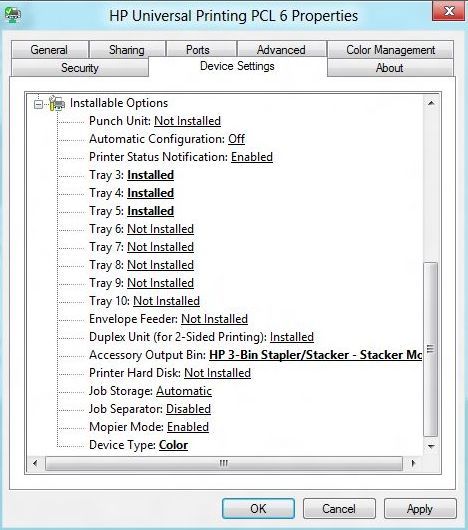
Pic. 15: Set the printer exactly as shown
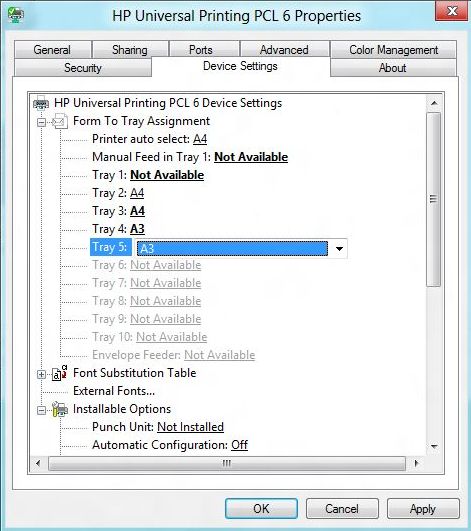
Pic. 16: Complete tray settings
Please note: the use of ICT services is subject to the library regulations, notably the "Rules for the use of computer technology and the Internet in NTK"
